Why Android reminders arrive late
You set a reminder for 6:00 p.m., but the phone alerts you at 6:17. Compare two test reminders and check whether the app has access to exact alarms.

Check whether the alert is late or just silent
Set two new reminders a few minutes ahead. Wait for the first with the screen on and the second with the phone locked. For each, record the scheduled time, when the card appeared in the notification shade and whether there was a sound.
If the card arrives on time, check the notification volume and the sound for the app's notification category. If the card itself is late, check exact alarm access and background restrictions.
The 6:00 p.m. test alerted you on time. For the 6:05 test, you turned off the screen and the card appeared only when you unlocked at 6:17. That gives you a reason to look at settings that affect an idle phone.
Where to find Alarms & reminders
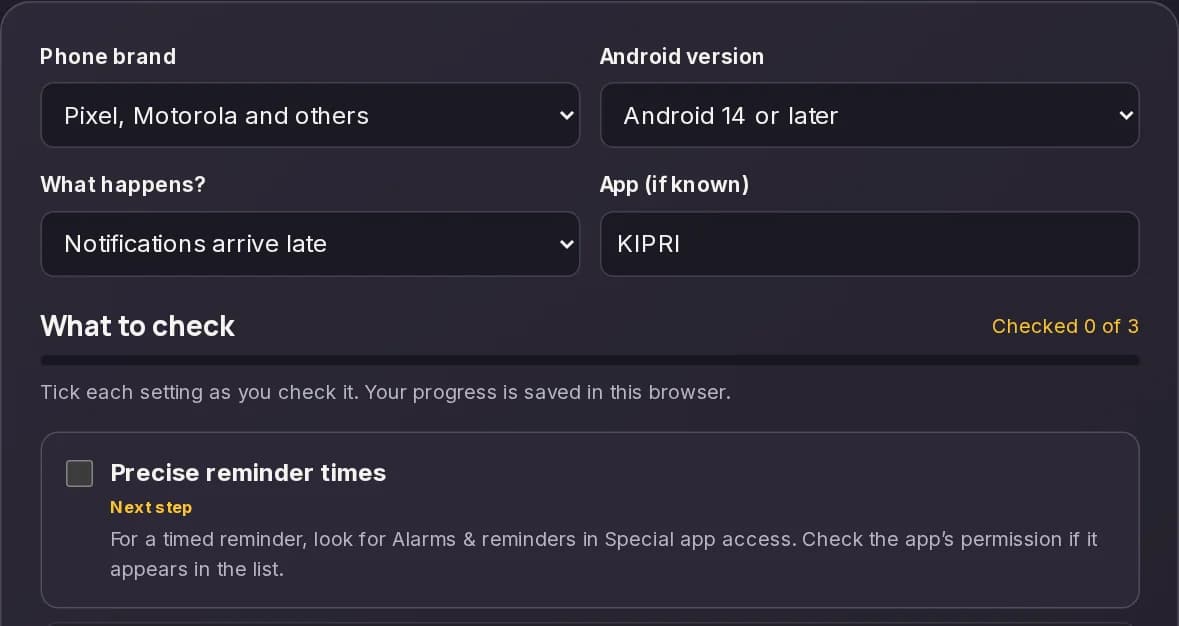
Search Android Settings for “Alarms & reminders.” Some phones put it under Apps, then Special app access. If your to-do app is listed and requests access to exact alarms, check its switch.
On Android 14, many newly installed apps targeting Android 13 or later start with exact alarm access turned off. Some alarm clock and calendar apps have different rules. If your app isn't listed, check its help to see whether it supports exact times. Some apps schedule approximate alerts.
What to check after switching phones
Even if the task list transferred, you may need to grant exact alarm access again on a new Android 14 phone. Open the next important task, check its time and repeat schedule, then check the phone's time zone. Look at the permission for the app that owns the task.
After changing the permission, create a fresh test reminder. If it works but a restored task still doesn't, open the restored task and save its alert time again. How an old schedule gets restored depends on the app.
When reminders are still late with the screen off
If the delay repeats while the phone is locked, check whether its battery settings restrict the app's background activity. Change one setting for that app and repeat the test after the same period of inactivity.
While you investigate, set a backup alarm in the system Clock app for any firm deadline. If you can reproduce the delay, tell the developer the expected and actual time, phone model and Android version. Include whether new reminders and reminders restored from a backup both work.
What “On time” means in KIPRI settings
In KIPRI’s notification settings, look for “Exact delivery time”. We checked how the app chooses the label in this row. It uses the Android version. The time your last reminder actually arrived plays no part in that calculation.
- Android 12 / 12L
- “Check”. An “Open system settings” button appears below the row. It opens the system settings for KIPRI.
- Android 13 / 14
- “On time”. The row has no settings button. If a reminder was late with this label showing, record when it was due and when its notification appeared with the screen locked.
How we checked
. We ran the status function from KIPRI’s source code (revision 60a523a) with Android API levels 31, 32, 33 and 34. We checked both the resulting label and whether the button was shown. All seven automated tests for this module also passed.
Separately, we inspected the permissions in an archived KIPRI 1.0.0 APK, build 2, with aapt2 dump permissions. Its manifest lists SCHEDULE_EXACT_ALARM, USE_EXACT_ALARM and POST_NOTIFICATIONS. The file cannot tell us which permissions are in effect on your phone.
No Android phone or emulator was connected for this check. We did not measure delivery delays or verify the settings menu on a particular handset.